Customers love choices — and “good, better, best” is one of the easiest ways to raise your average job. With quote options, you can put up to three options in one quote: say, just the front roofline, the whole house, or the whole house plus the front trees. Your customer compares them side by side, picks one, and signs — all from the same link.
Each option is a complete quote of its own: its own measurements, its own mockup photo, its own add-ons and its own price. Once your customer picks one, it becomes a normal quote — deposits, payments, scheduling and invoicing work exactly as usual.
Add options to a quote
-
Build and save your quote as usual. This becomes your first option.
-
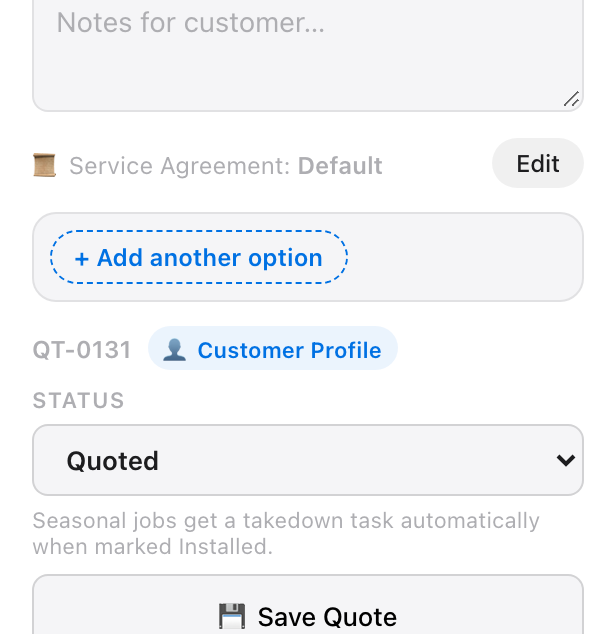
In the estimate panel, just above the quote number, click + Add another option.
-
LightQuoter opens your new option, starting as a copy of the first one. Change whatever is different — measure more roofline, add trees or décor, redraw the mockup, or adjust the price.
-
Repeat for a third option if you like.
You’ll now see an Options bar with a tab for each option and its price. The highlighted tab is the option you’re editing — click another tab to switch to it (your changes are saved first).
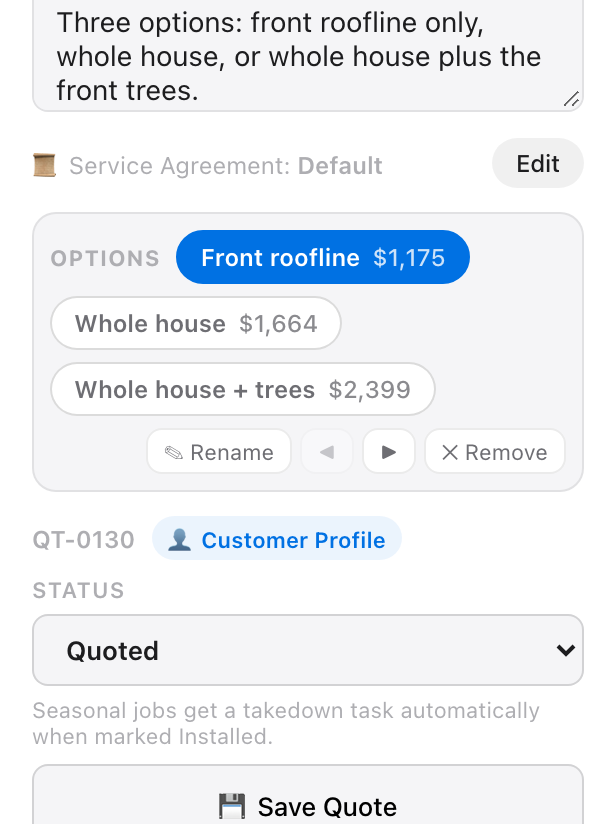
The + Add option button appears once the quote is saved, as long as it hasn’t been accepted yet and has fewer than three options.
Name, reorder, and remove options
With a quote that has two or more options open, use the buttons in the Options bar:
- ✎ Rename — give each option a clear name your customer will understand, like “Front roofline”, “Whole house”, or “Whole house + trees” (up to 40 characters).
- ◀ ▶ — change the order. Your first option’s price is what the quote counts for in your pipeline, so LightQuoter asks you to confirm before you move an option into first place.
- ✕ Remove — take an option off the table. If your customer opens a removed option’s link, they’re told it’s no longer offered and shown the options that remain.
Your customer’s name, email, phone number and address are shared across all the options — update them on any option and the others update too.
Send the quote
Send it exactly like any other quote — ✉ Send Email, or from the Share Quote menu: Copy Quote Link, Send via Text, or Send via WhatsApp. You send one link, and it shows every option.
The quote email lists each option with its price, and the button reads Compare Your Options.
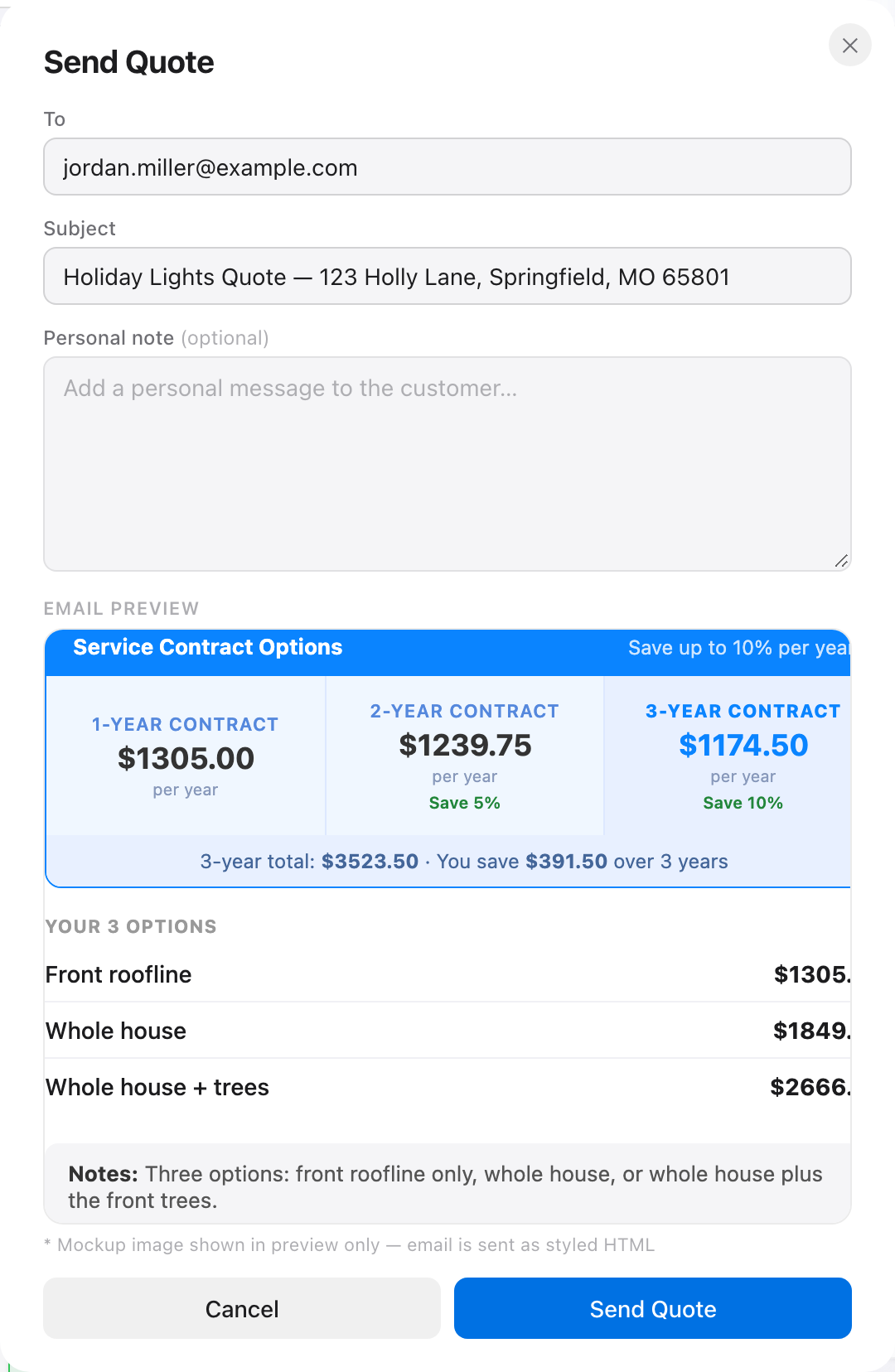
Already sent a link before adding options? No need to resend — that same link now shows all of them.
What your customer sees
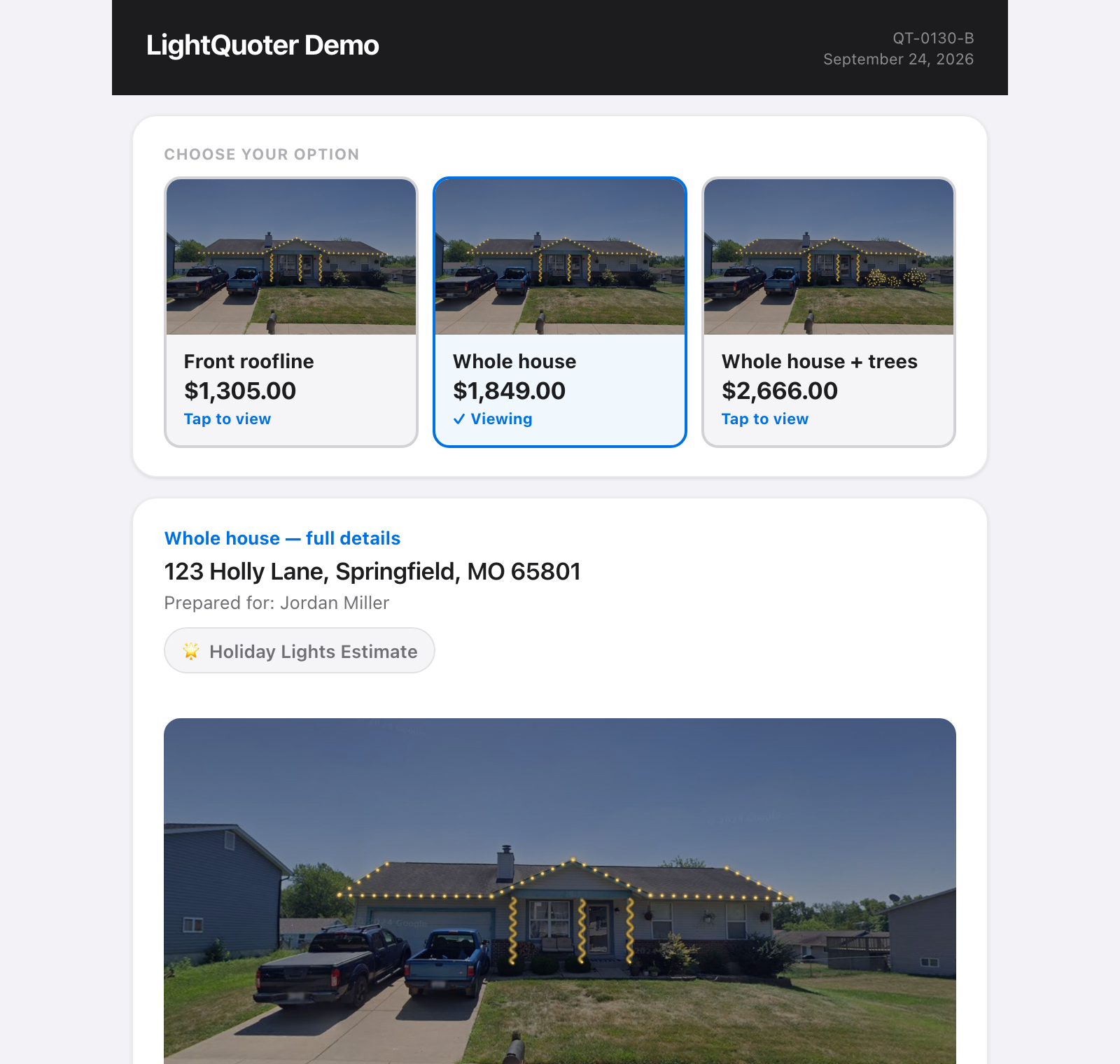
Your customer’s link opens with a Choose your option section — a card for each option with its mockup photo, name and price. The option they’re looking at is outlined and marked ✓ Viewing.
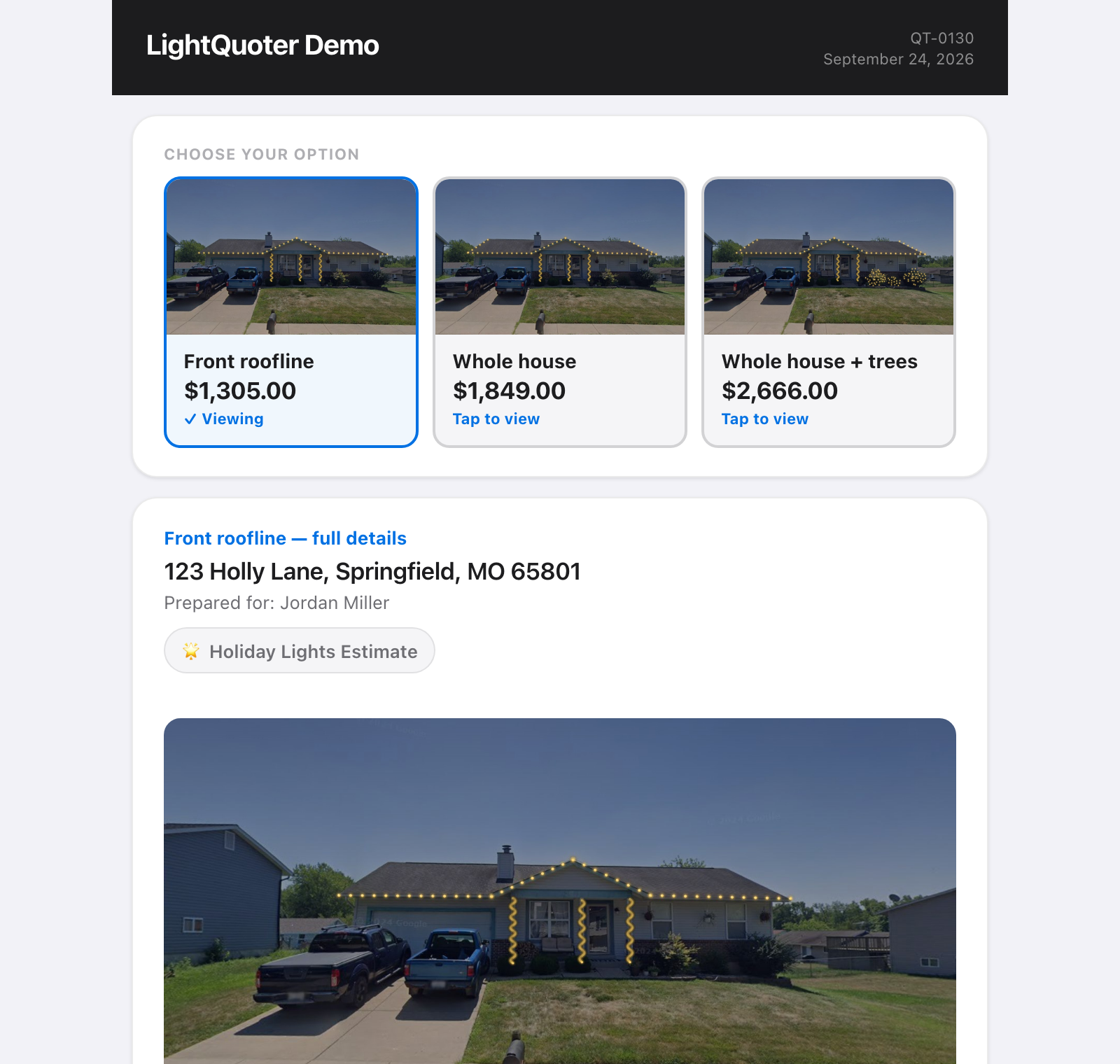
Tapping another card shows that option’s full details — its own mockup, line items and contract choices.
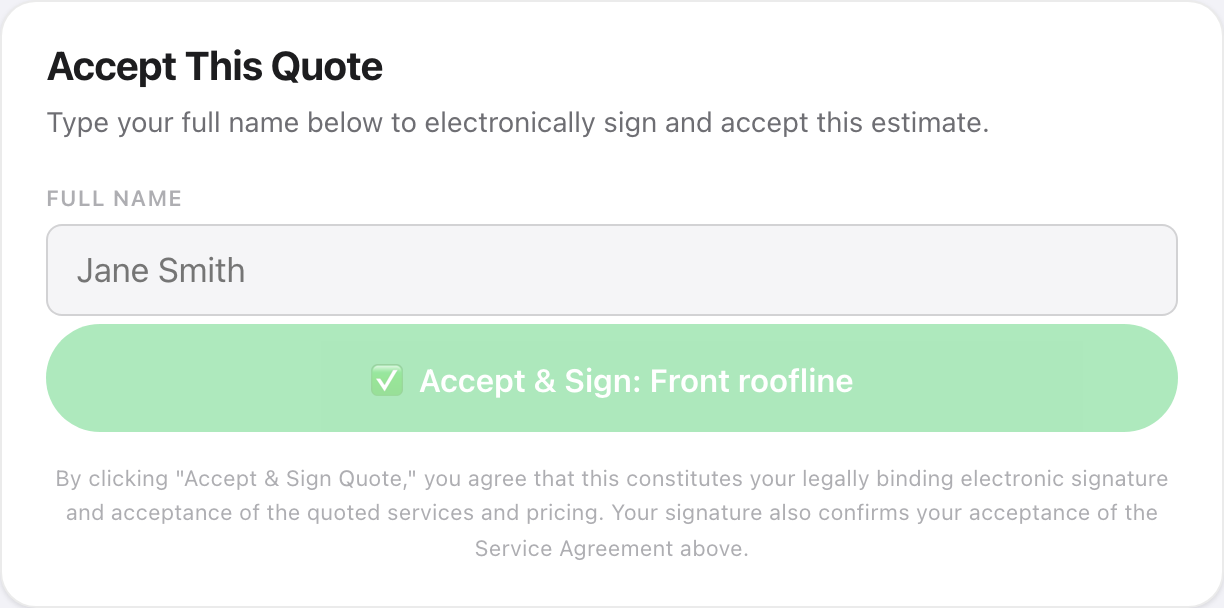
They sign with the button for the option they’re viewing — for example ✅ Accept & Sign: Whole house — and pay their deposit as usual.
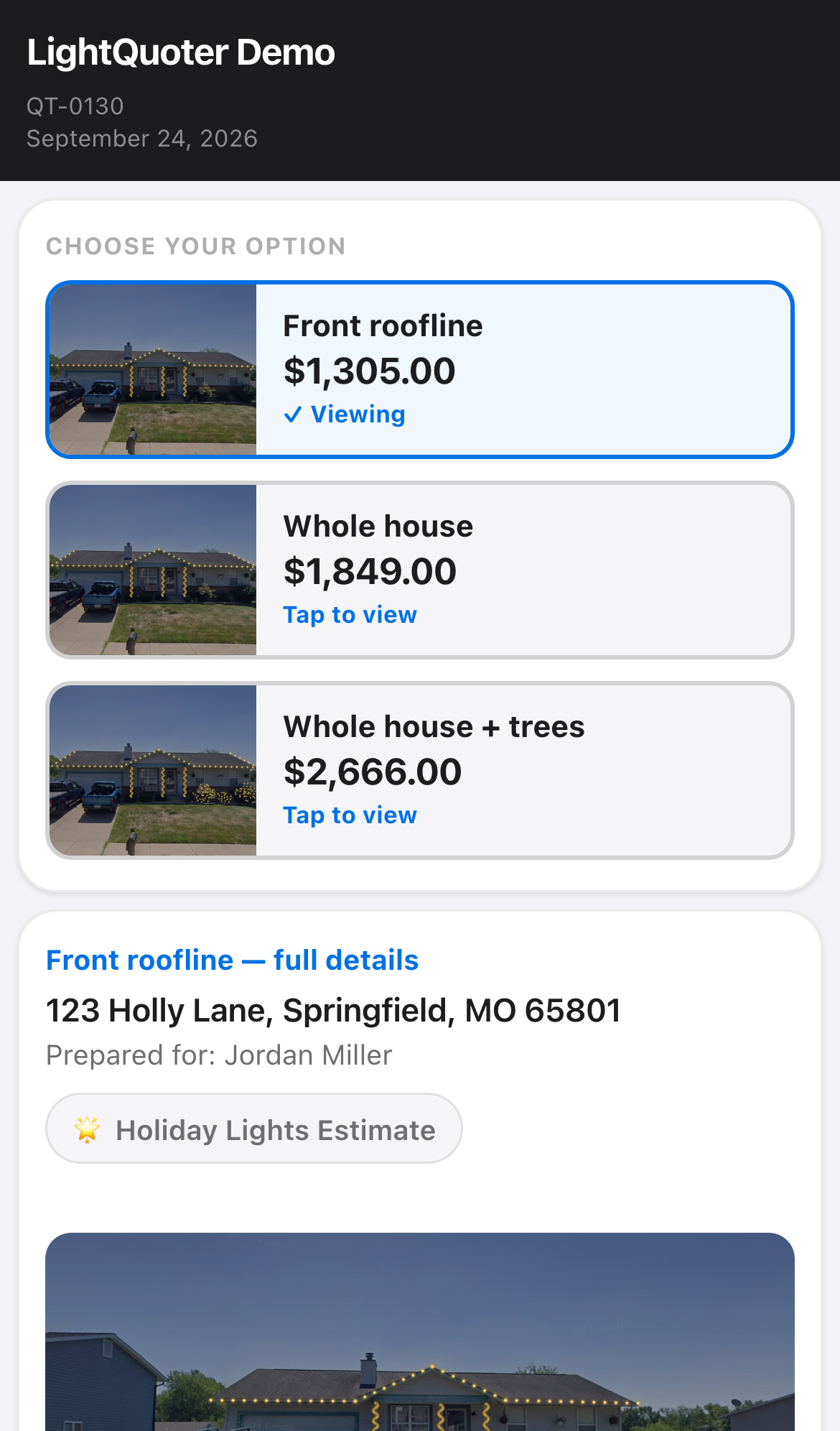
On a phone, the cards stack neatly with the photo beside each option.
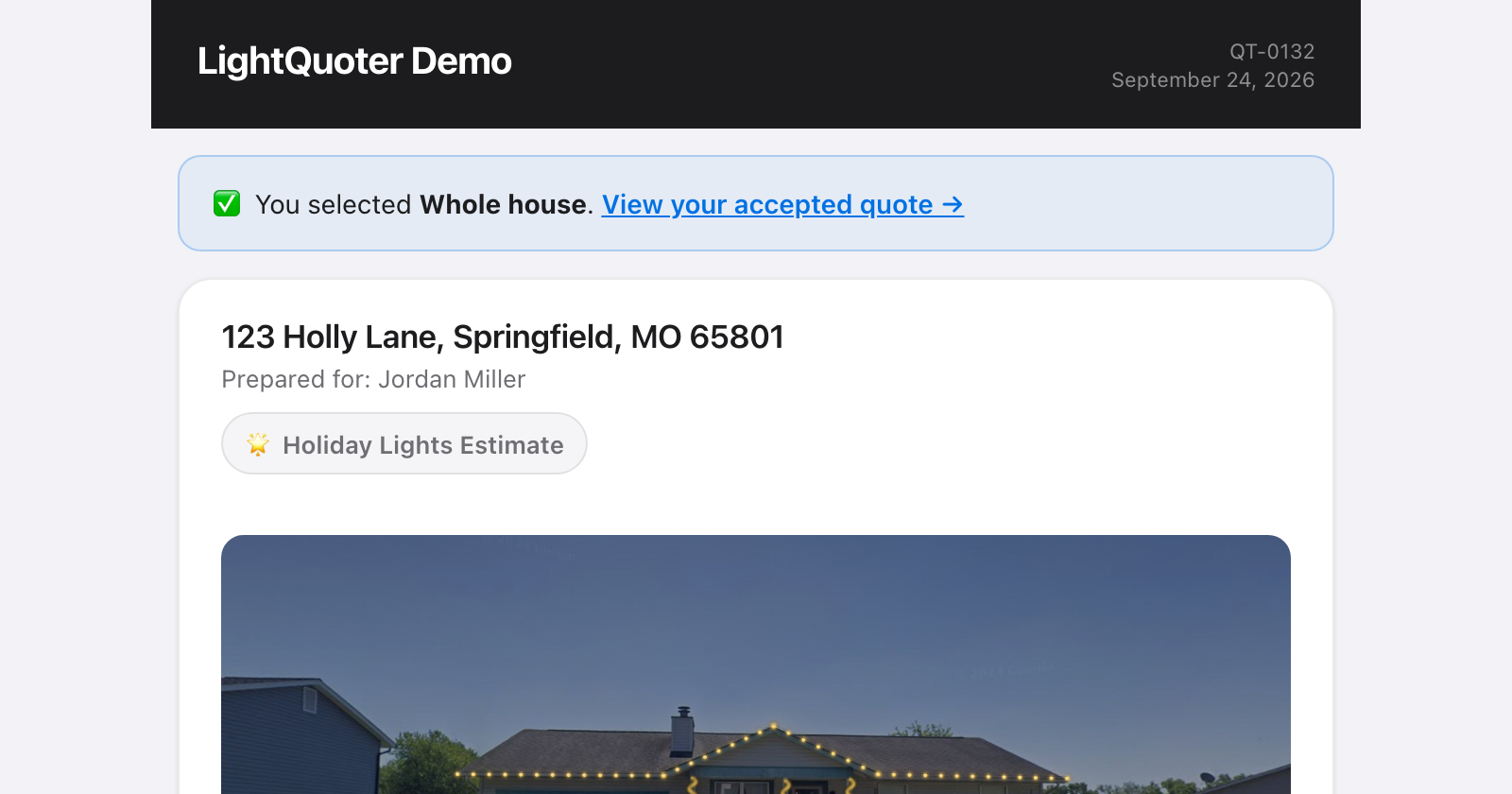
Once they sign, the other options are archived automatically. If they open one of the other options’ links later, they see which option they chose, with a link to their accepted quote.
You’ll get your usual “Quote Accepted” email, with the chosen option’s name in the subject line.
Record a choice made by phone or in person
If your customer tells you their choice directly, just mark the quote Accepted the way you normally would — the Mark as Accepted button or the Status menu on the quote, or by moving the card on the Jobs board. LightQuoter asks Which option did the customer choose?
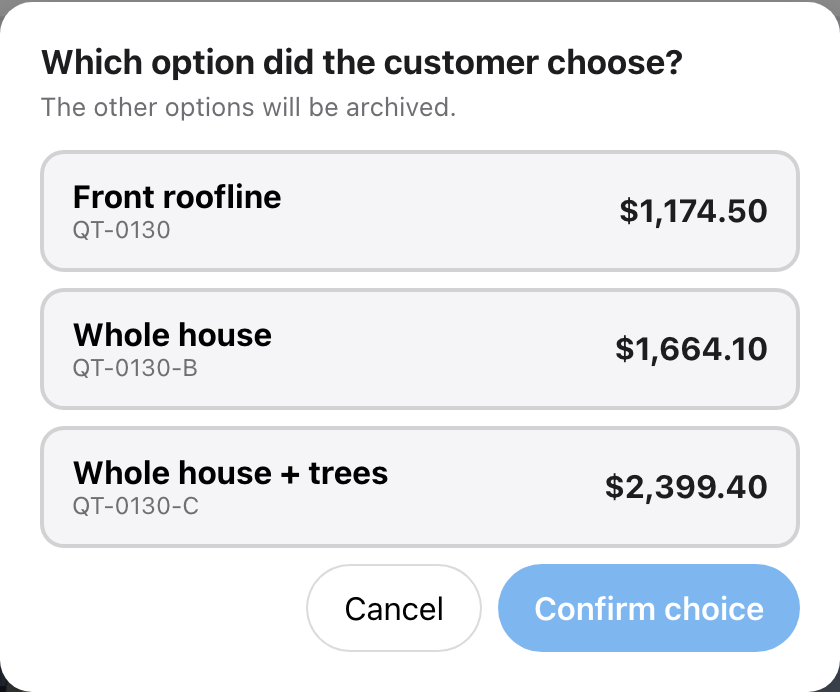
Pick the option and click Confirm choice. That option moves to Accepted and the others are archived. Click Cancel to leave everything as it was.
Moving several jobs to Accepted at once with Select on the Jobs board skips quotes that have options — open those and choose the option instead.
Options on your Jobs board and dashboard
Until your customer decides, an options quote shows as one card on the Jobs board, with an options badge and the price range.
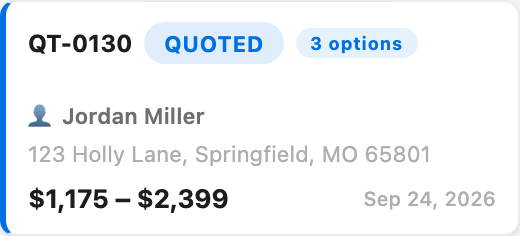
- Your pipeline, dashboard stats and customer lists count it once, at your first option’s price.
- Searching the Jobs board finds a quote by any of its options’ numbers or names.
- Archive or Delete on an options card applies to all of its options — the confirmation tells you how many.
- In a CSV export, each option gets its own row with an Option column.
Why do I see a different price than my customer? If you offer multi-year contracts, your Options bar and Jobs board show each option’s per-year price at the contract length you’re offering (for example, a 3-year rate). Your customer’s option cards and email show the standard one-year price, and they choose their contract length on the quote page as usual. Both are correct — they’re just two views of the same option.
Good to know
- Up to three options per quote. Each new option starts as a copy of the one you’re viewing.
- Job photos, payments and install dates stay with their own option — they aren’t copied when you add a new one.
- Multi-year renewals: if a customer is in year two or three of a signed contract, their price is already locked, so options aren’t available on that renewal.
- After your customer chooses, you can’t add, remove or change options on that quote. If you undo an acceptance, the other options stay archived — you can restore one from the Jobs board (Show Archived), and it comes back as its own separate quote.
Common questions
Can I give a customer more than one option in a quote? Yes. Save your quote, then click + Add another option (just above the quote number) to create Option B. Each option is a full quote with its own measurements, mockup, add-ons and price. You can offer up to three options per quote.
Do I send a separate link for each option? No. Send the quote the normal way — one link. Your customer sees every option side by side, taps one to see its full details, and signs the one they want. The quote email lists every option with its price.
What happens to the other options when my customer signs one? They’re archived automatically and can no longer be signed or paid. If your customer opens one of them later, the page tells them which option they chose and links to their accepted quote.
My customer picked an option over the phone. How do I record it? Change the quote to Accepted as you normally would — from the quote, or by moving the card on the Jobs board. LightQuoter asks which option the customer chose; pick it and click Confirm choice. The other options are archived.
How do options show up in my pipeline? An undecided options quote counts as one quote — one card on the Jobs board with an options badge and the price range, and one entry in your pipeline valued at your first option’s price. Once your customer chooses, the chosen option is a normal quote.
Is this feature available on the free plan? Yes. Quote options are available on every LightQuoter plan.
Troubleshooting
- I don’t see + Add another option. Save the quote first. The button is hidden once a quote has been accepted or signed, on a locked multi-year renewal, and when a quote already has three options.
- “A quote can have up to 3 options.” Remove an option first, or create a separate quote.
- “The customer already chose an option for this quote.” Your customer already signed, or the quote was already marked Accepted — check the Jobs board card to see which option.
- My customer says their link says the option is “no longer offered.” You removed that option. The message links them to the options that remain.
- I fixed a typo in the customer’s email on one option. It copies to the other options automatically when the quote saves (a few seconds after you stop typing). Options that were already signed or archived aren’t changed.