Some customers have more than one property: a gas station chain, a strip of stores, a property manager with several buildings. With property bundles, you quote every location separately — each with its own measurements, mockup and price — and send your customer one link for all of them.
Your customer checks the locations they want, signs once, and pays one deposit. Each accepted location then becomes its own job on your board, so scheduling, installs, takedowns and renewals work exactly as usual.
Start a bundle
-
Build and save the quote for the first location as usual.
-
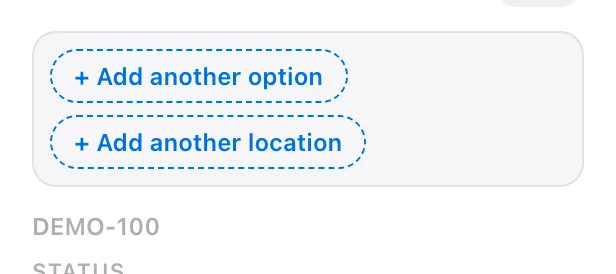
In the estimate panel, click + Add another location (next to + Add another option).
-
LightQuoter opens a new, blank quote for the same customer. Enter the location’s address and measure it like any other quote.
-
Repeat for every location.
The first quote becomes location 1, and the bundle is named after your customer (for example “Morgan Lee properties”). Click the name in the bundle bar to rename it — your customer sees this name, so something like “Riverside Market locations” works well.
The bundle bar
Every location in a bundle shows a bundle bar in the estimate panel:
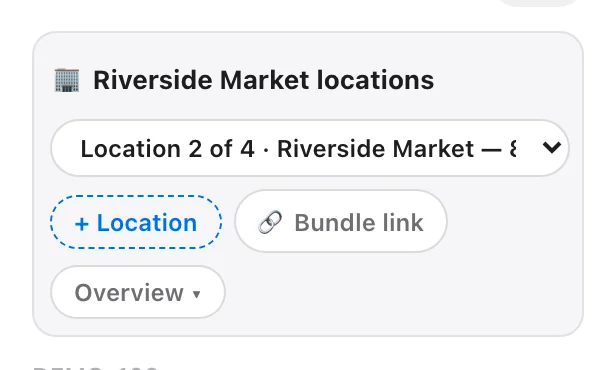
- The location menu (for example “Location 2 of 4”) switches between locations. Your changes are saved first.
- + Location adds another location.
- 🔗 Bundle link copies the link to send your customer.
- Overview opens the full list of locations and the bundle settings.
Bundle overview and settings
Click Overview to see every location with its price and status, and to set how the bundle works.
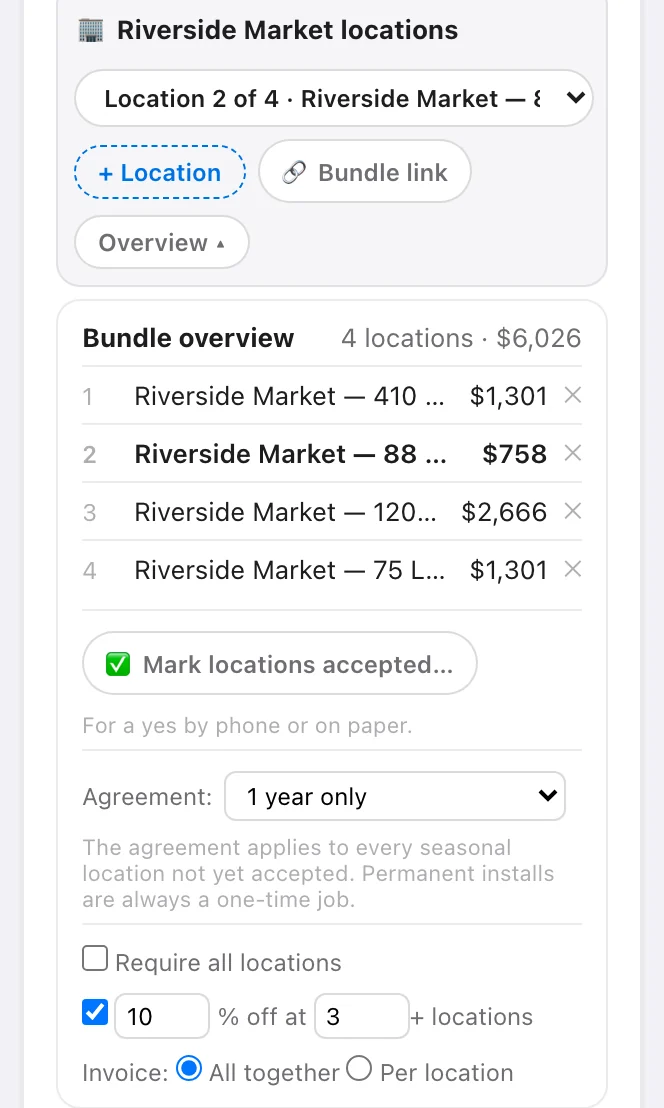
- Locations — each shows its price and a status badge once there’s something to show: Accepted, Not accepted yet, or Draft (no address yet). Click a location to open it. ✕ removes a location from the bundle — it stays a normal, separate quote.
- Agreement — choose what your customer can sign for: 1 year only, Choice of 1 or 2 years, Choice of 1, 2 or 3 years, 2 years only, or 3 years only, plus the 2-year and 3-year discounts. This applies to every location that hasn’t been accepted yet.
- Require all locations — locks the checklist so your customer accepts the whole package or nothing.
- % off at N+ locations — one multi-location discount, for example 10% off at 3+ locations.
- Invoice — All together (one combined invoice, the default) or Per location (each location invoiced on its own). This locks once your customer has paid toward their balance.
Because the agreement is set for the whole bundle, the contract options on each location are greyed out with a reminder to change them in the Bundle overview:
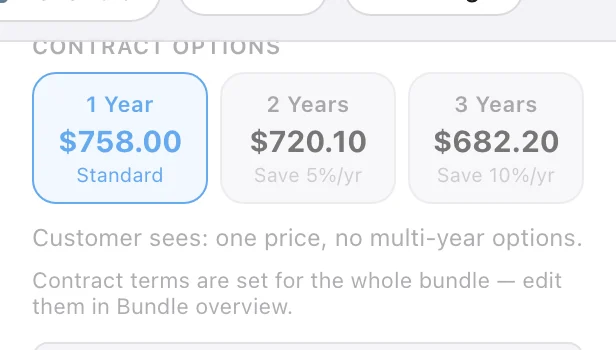
Your customer’s name, email and phone number, and your service agreement, are also shared across the bundle — edit them on any location and the others update too. Each location keeps its own address.
Send the bundle
Send it from any location, the same way you send a quote:
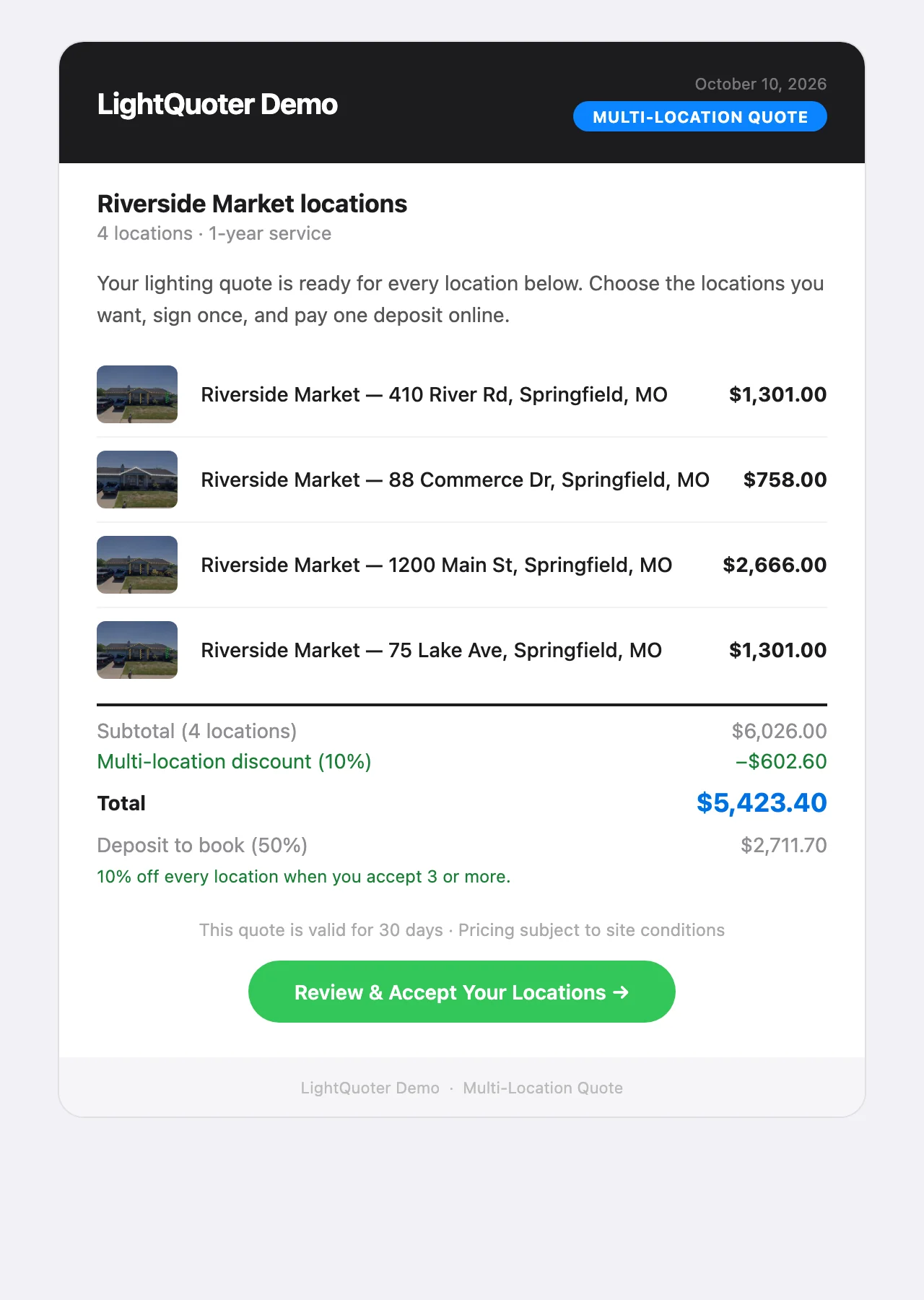
- ✉ Send Email sends one email for every location — each location with its photo and price, the multi-location discount, the total and the deposit, with a Review & Accept Your Locations button.
- Share Quote (copy link, text or WhatsApp) and 🔗 Bundle link share the bundle link.
- Preview Quote opens the bundle page exactly as your customer will see it.
Sending the bundle moves every location that’s still a Lead to Quoted.
Export PDF asks what you’d like to print:
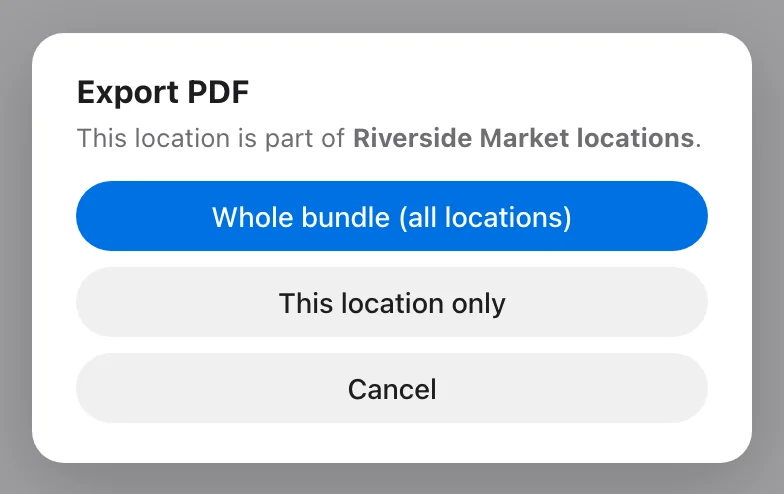
Whole bundle (all locations) gives you a summary page (every location, the discount, total, deposit and a link to accept online), a page for each location with its mockup and line items, and your service agreement. This location only prints the usual single-quote PDF.
What your customer sees
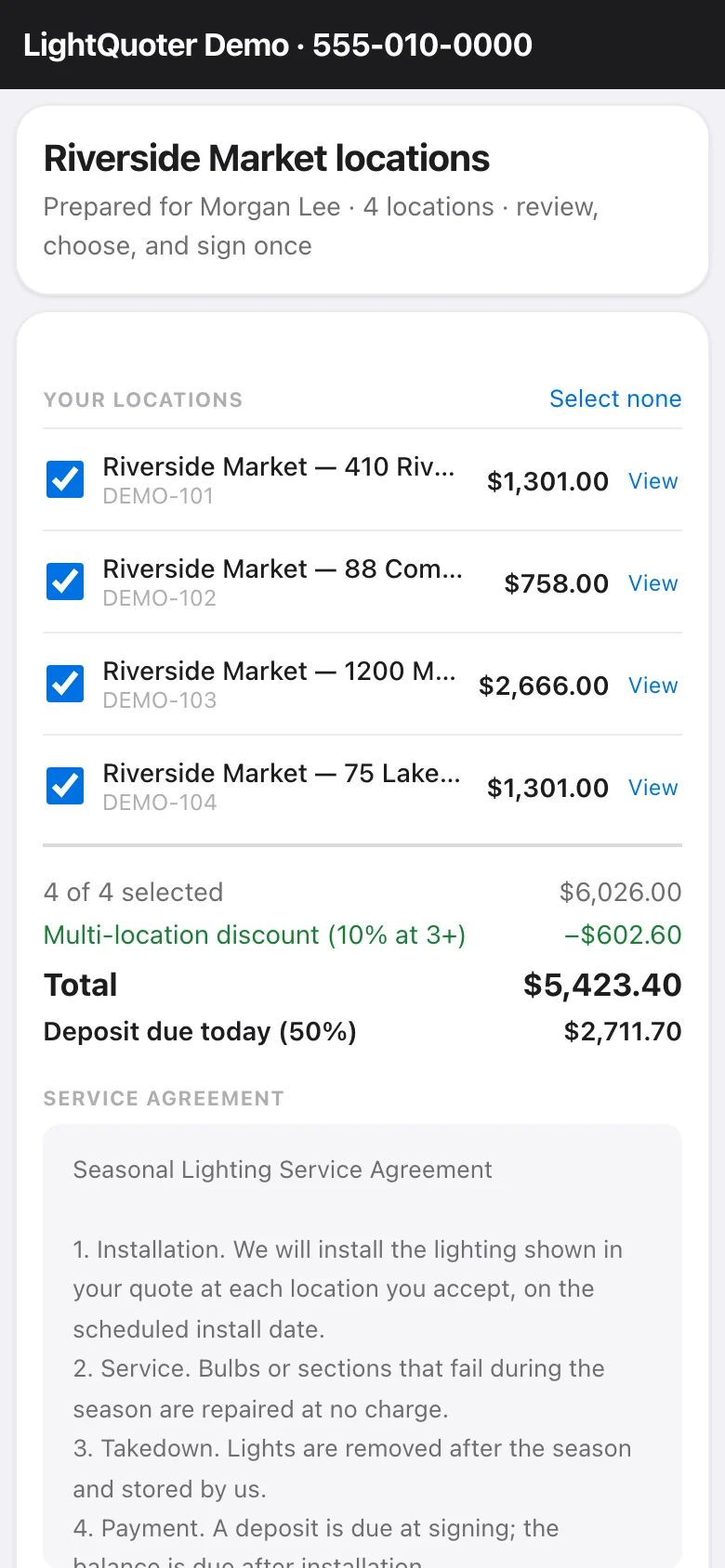
Your customer’s link opens a page listing every location, all checked to start, with a running total.
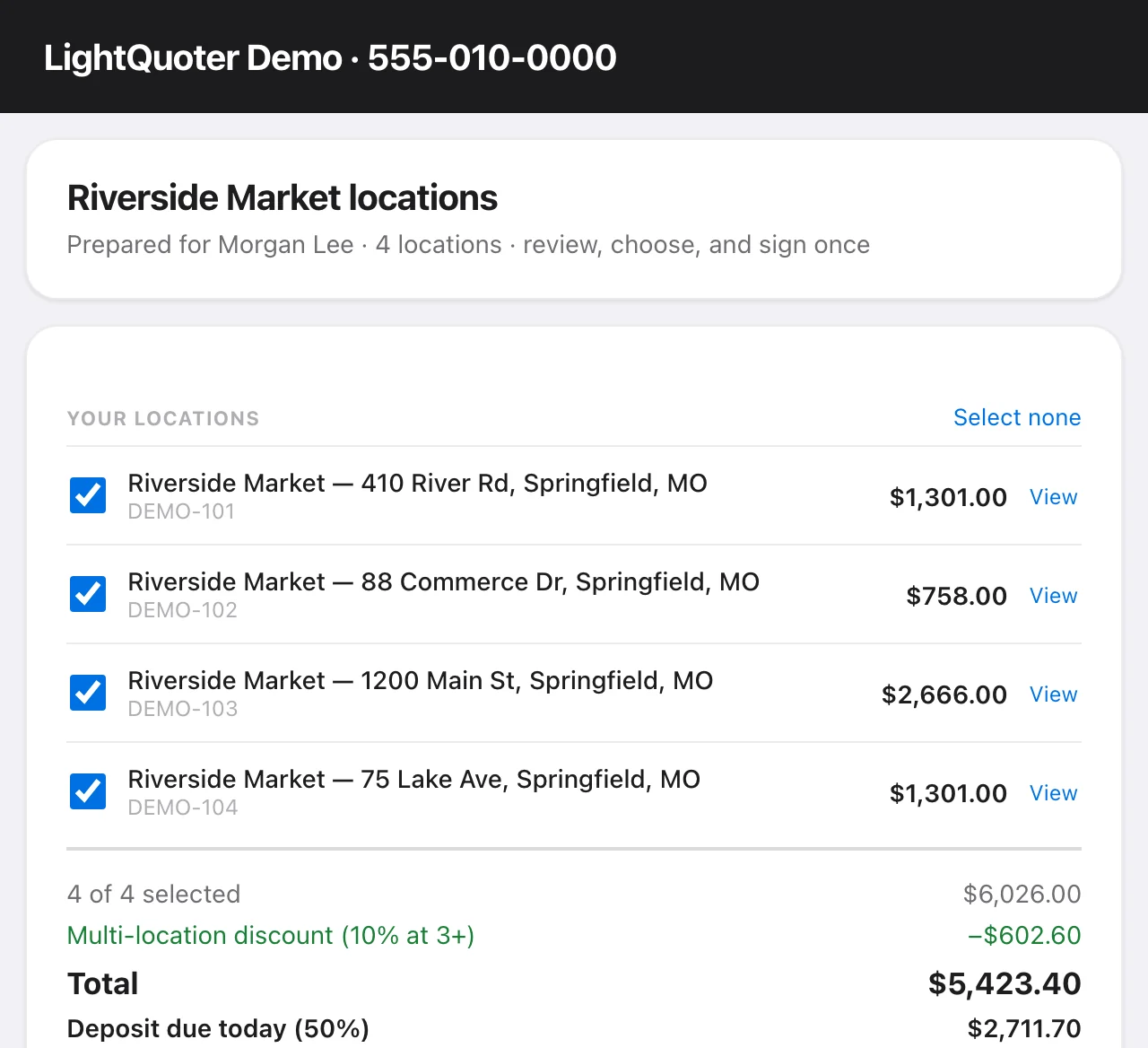
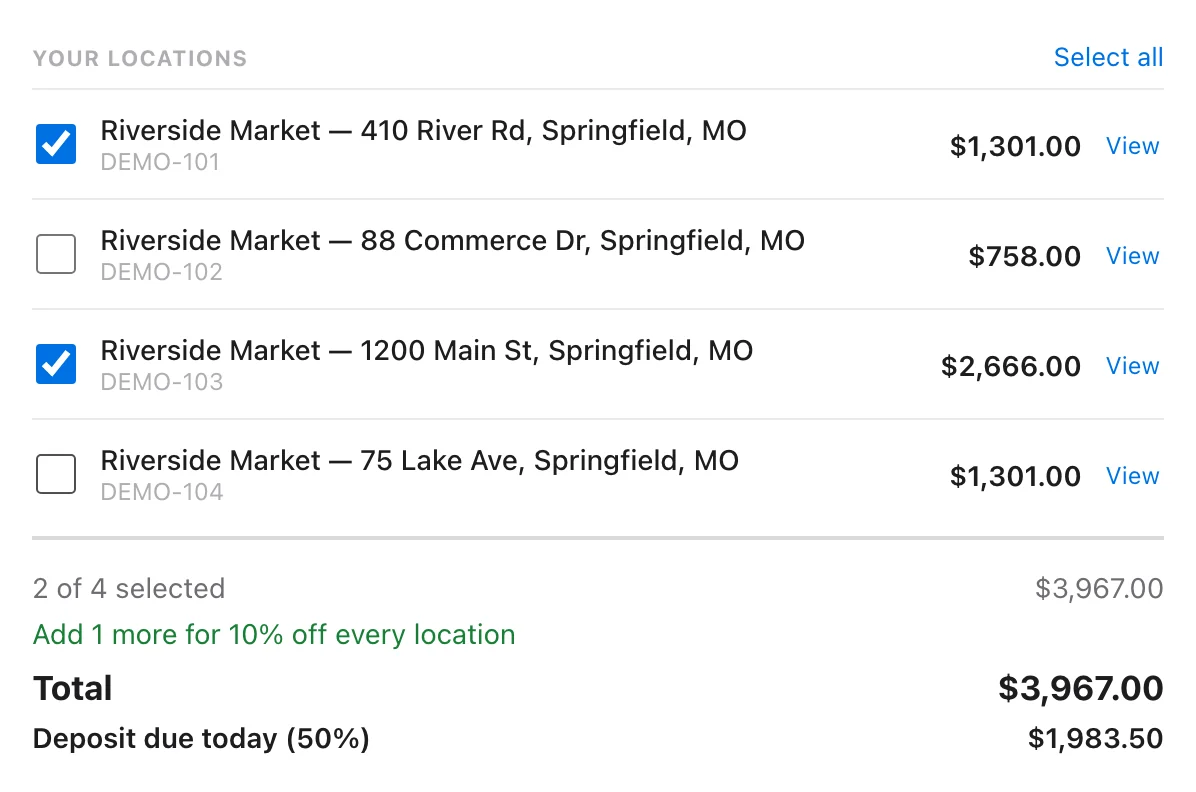
They uncheck any location they don’t want, and the total, discount and deposit update as they go. If they’re close to your discount, the page tells them how many more locations earn it. View opens a location’s full quote — mockup, line items and details.
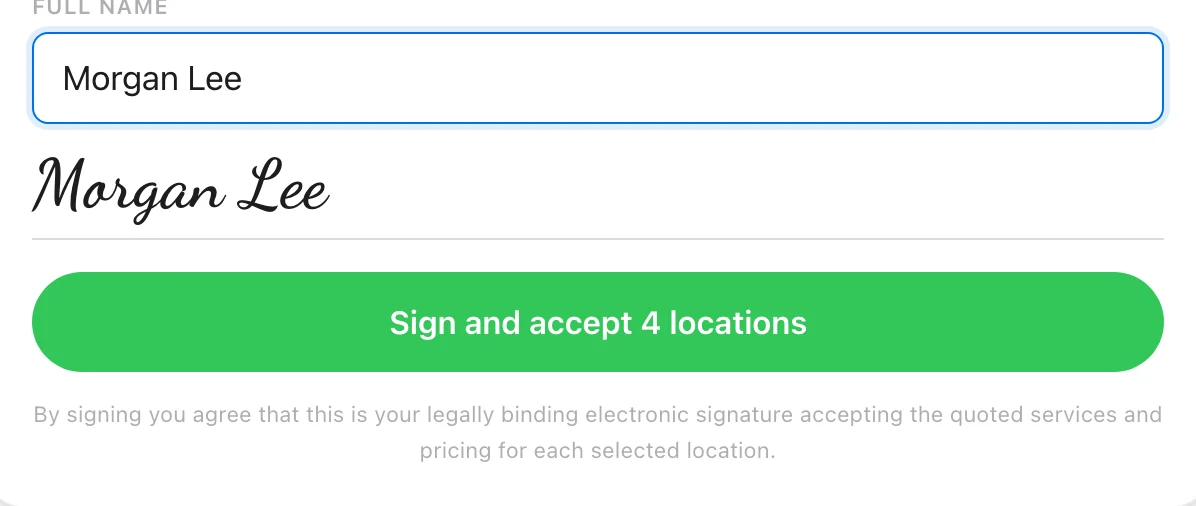
When they’re ready, they read the service agreement, type their name, and click Sign and accept — the button says how many locations they’re accepting.
It works the same way on a phone.
If you offer multi-year agreements, your customer picks the length once, and it applies to every seasonal location they accept. Permanent installs are always a one-time job.
Deposits and payments
After signing, your customer pays one deposit for the locations they accepted, right from the bundle page. LightQuoter splits every payment across the locations — in proportion to each location’s price — so each job on your board shows exactly what’s been paid and what’s left.
With All together invoicing, the bundle page becomes your customer’s combined invoice: a section for each location, the combined total, what’s been paid, and one Pay balance button.
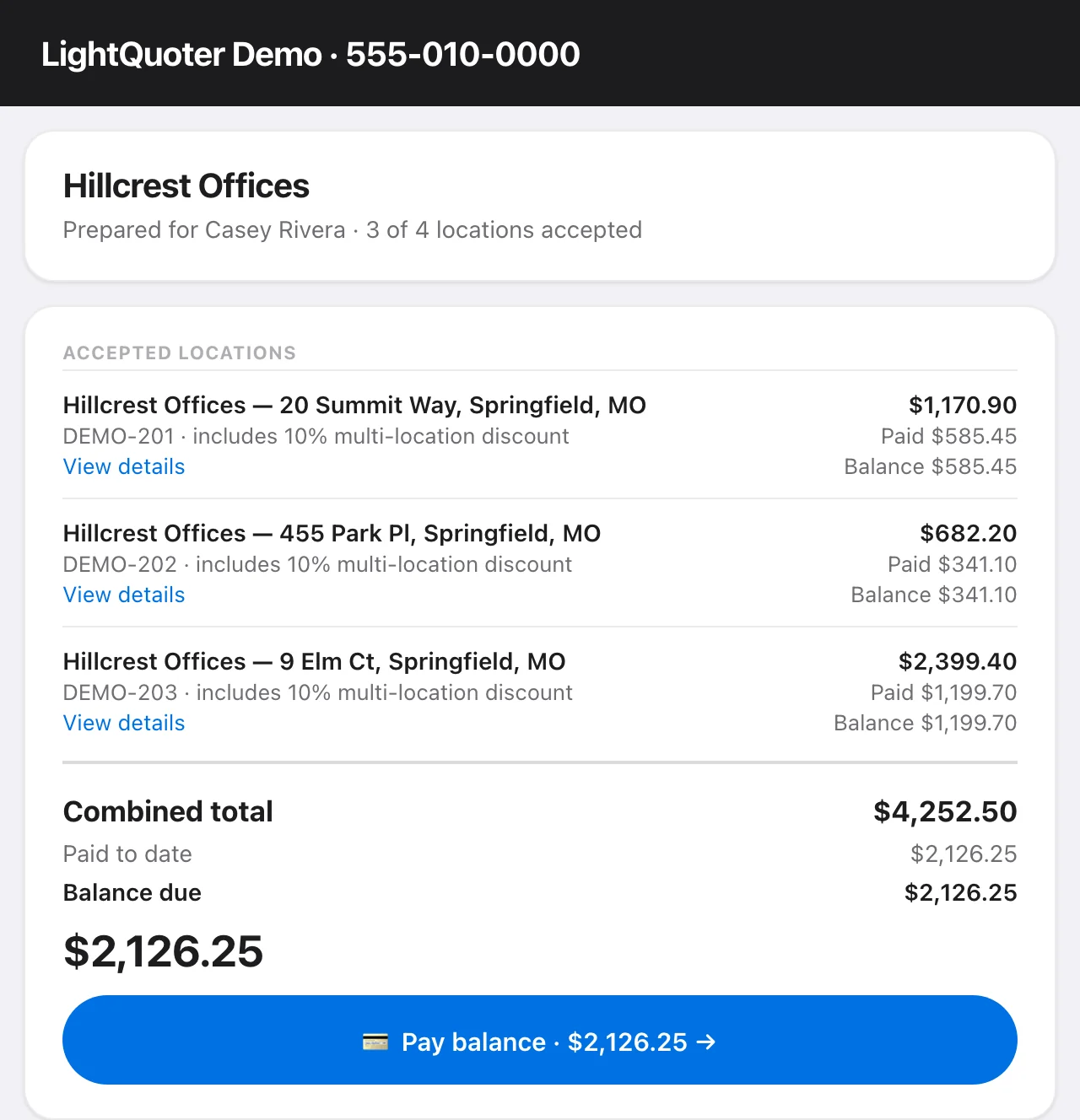
With Per location invoicing, each accepted location links to its own invoice instead.
If a location’s price changes after the deposit, the balance updates automatically. If a price comes down below what that location has already paid, the extra counts toward the other locations, so your customer never pays more than the total.
From the quoter, Charge Card and Send Balance Payment Request work with the bundle too: they take the deposit for the location’s signing, then the combined balance when you invoice all together.
Locations your customer didn’t accept
Locations your customer didn’t check aren’t deleted. They stay on the bundle page under Not accepted yet, and your customer can accept them later with a quick second signing and its own deposit.
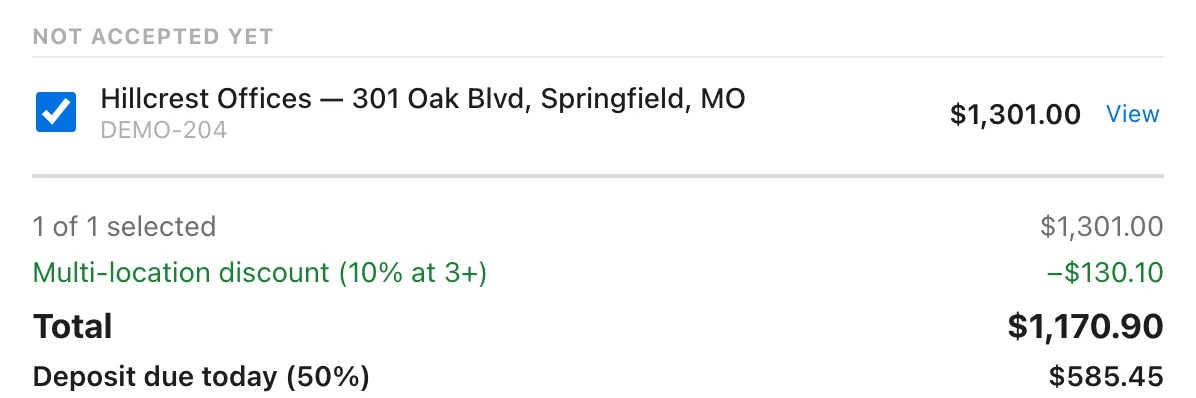
The multi-location discount counts locations they accepted earlier. In the example above, three locations were already accepted, so the fourth gets the 10% discount too. Earlier locations are never repriced.
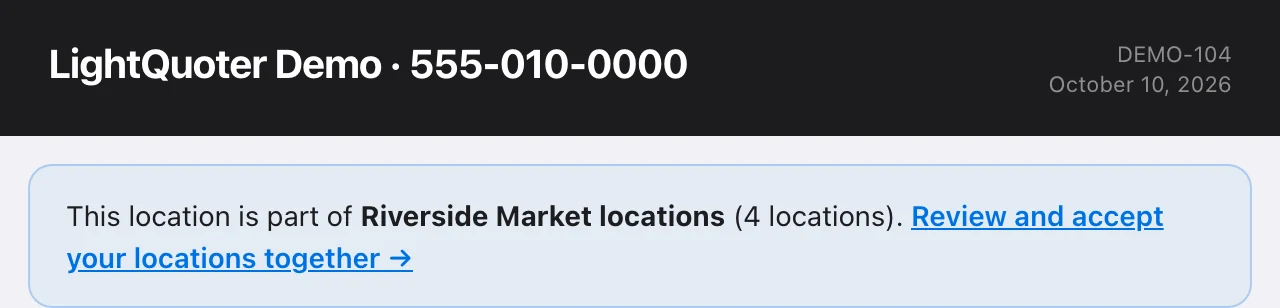
If your customer opens a single location’s link, the page shows its full details and points them to the bundle to accept:
Record a yes by phone or in person
- Open any location in the quoter and click Overview in the bundle bar.
- Click ✅ Mark locations accepted….
- Check the locations your customer accepted (and the agreement length, if you offer more than one), then click Record acceptance.
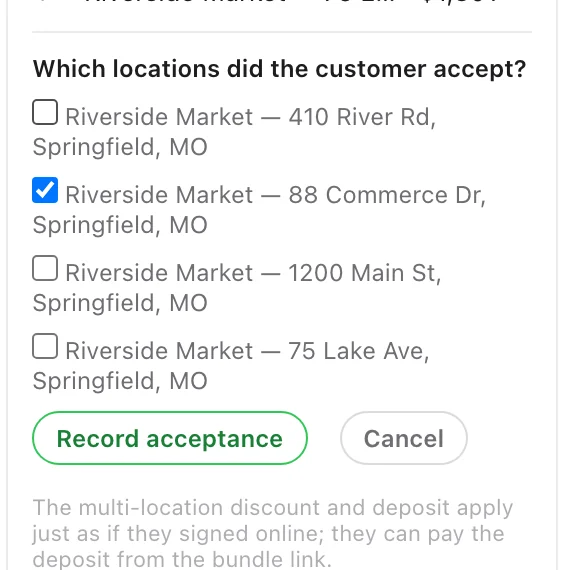
The multi-location discount and deposit apply just as if your customer had signed online, and they can pay the deposit from the bundle link.
Clicking Mark as Accepted or changing the Status on a bundled location opens this same form. Bundled locations always become Accepted through the bundle, so the discount and deposit are never skipped.
Bundles on your Jobs board
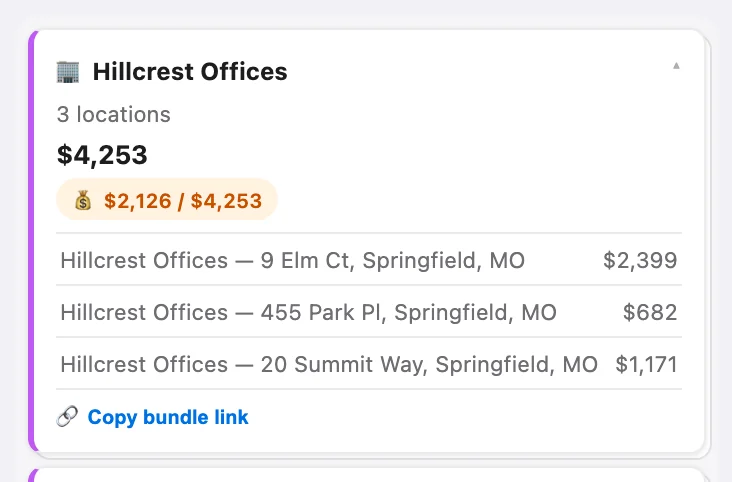
Each bundle shows as one stacked card per column, with the number of locations, the combined price and what’s been paid. Click the stack to see each location.
-
Drag the stack to move every location in it, or drag a single location from the expanded list (for example, when one store is installed first).
-
🔗 Copy bundle link on the expanded stack copies your customer’s link.
-
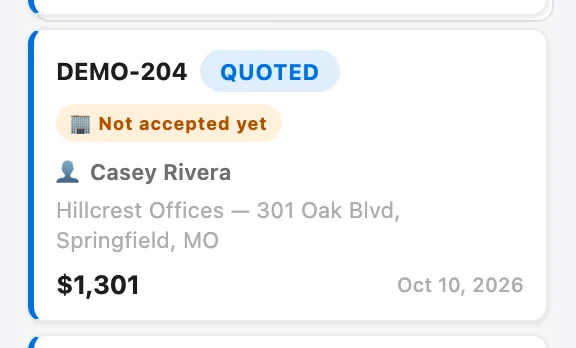
Locations your customer hasn’t accepted yet show a Not accepted yet badge.
-
Uncheck Group Bundles at the top of the board to see one card per location.
-
Moving an unaccepted location to Accepted on the board is blocked — use Mark locations accepted… instead.
Each accepted location is a normal job from here: its own install date, crew, takedown and renewal next season.
Good to know
- Each location is a full quote with its own measurements, mockup, add-ons, photos and price.
- Discounts stack in order: a multi-year agreement discount is applied first, then the multi-location discount comes off that price.
- Adding locations: you can add locations until your customer accepts the first one. After that, start a new bundle for extra properties.
- Options and bundles don’t mix: a location in a bundle can’t have Option A/B/C, and a quote with options can’t start a bundle.
- Removing a location (✕ in the Overview) turns it back into a normal quote. Accepted locations can’t be removed.
- Deleting: a bundle location with payments can’t be deleted — archive it instead. Archiving an unaccepted location removes it from your customer’s bundle page.
- Reminders: if you use automatic customer reminders, your customer gets one reminder for the whole bundle, not one per location.
Common questions
Can I quote several properties for the same customer in one link? Yes. Build and save the quote for the first location, then click + Add another location (next to + Add another option). Each location is its own quote with its own measurements, mockup and price, and your customer gets one link for all of them.
Does my customer have to accept every location? No. Every location starts checked, and your customer can uncheck any they don’t want. They sign once for the locations they keep and pay one deposit. If you need all-or-nothing, turn on Require all locations in the Bundle overview.
What happens to the locations my customer doesn’t accept? They stay on the bundle page under Not accepted yet. Your customer can come back later, check them, and sign again — each later signing has its own deposit. On your Jobs board they show a Not accepted yet badge.
How does the multi-location discount work? Set one rule in the Bundle overview, like 10% off at 3+ locations. When your customer accepts enough locations — counting any they accepted earlier — the locations they’re signing for get the discount. It never changes the price of locations that were already accepted.
My customer said yes over the phone. How do I record it? Open any location in the quoter, click Overview in the bundle bar, then Mark locations accepted…. Check the locations they accepted and click Record acceptance. The discount and deposit apply just as if they had signed online.
Can my customer pay one invoice for every location? Yes. With Invoice set to All together (the default), the bundle page shows one combined invoice with a section for each location and a single Pay balance button. Choose Per location if each location should be invoiced on its own.
Is this feature available on the free plan? Yes. Property bundles are available on every LightQuoter plan.
Troubleshooting
- I don’t see + Add another location. Save the quote first. The button is hidden once a quote has been accepted or signed, and on a quote that already has options.
- + Location is missing from the bundle bar. Your customer has already accepted a location in this bundle. Start a new bundle for more properties.
- I can’t change the contract options on a location. They’re set for the whole bundle — change them in Overview → Agreement.
- The Invoice setting is greyed out. Your customer has already paid toward their balance, so the invoice layout is locked to keep everything consistent.
- I tried to drag a location to Accepted and got a message. Bundled locations are accepted through the bundle — use Overview → Mark locations accepted….
- My customer opened a location’s own link and can’t sign it. That’s expected — the page links them to the bundle, where they accept their locations together.