When a customer signs a 3-Year Price Lock, you don’t need to remember what they owe in years 2 and 3. The Renewals page prices each season for you.
Each season is priced for you
| Season | What the customer pays |
|---|---|
| Year 1 | The price they signed (the deposit price) |
| Year 2 | Year 2’s loyalty savings off the price |
| Year 3 | Year 3’s loyalty savings off the price |
On a $2,127 job at 0% / 10% / 15%, that’s $2,127.00, then $1,914.30, then $1,807.95.
Year 3 is locked the same way year 2 is. When the contract is over, the next renewal is an ordinary one: no lock, and your normal season pricing applies.
Send the renewal
- Open Renewals and pick the season.
- Find the customer. The Contract column shows where they are: Year 2 of 3 🔒, or Year 3 of 3 — Final ⚠️ in the last year.
- Click Confirm & Send (or Send Renewal).
- Review the email (see below) and click Send email.
The customer’s renewal quote shows one price, “Year 2 of 3 — your price is locked in”, with no new contract choice. They confirm it by typing their name, the same as signing.
What stays out of a locked season
While a customer is inside their contract:
- Adjust Pricing (your season-wide price change) skips them.
- The early-bird discount doesn’t apply. Their price is already locked and discounted.
Both apply again once the contract ends.
Every renewal email is previewed first
Every way of sending a renewal now opens Review the email before sending first: Send Renewal, Confirm & Send, 📧 Resend, and the bulk 📧 Send Renewal Offer.
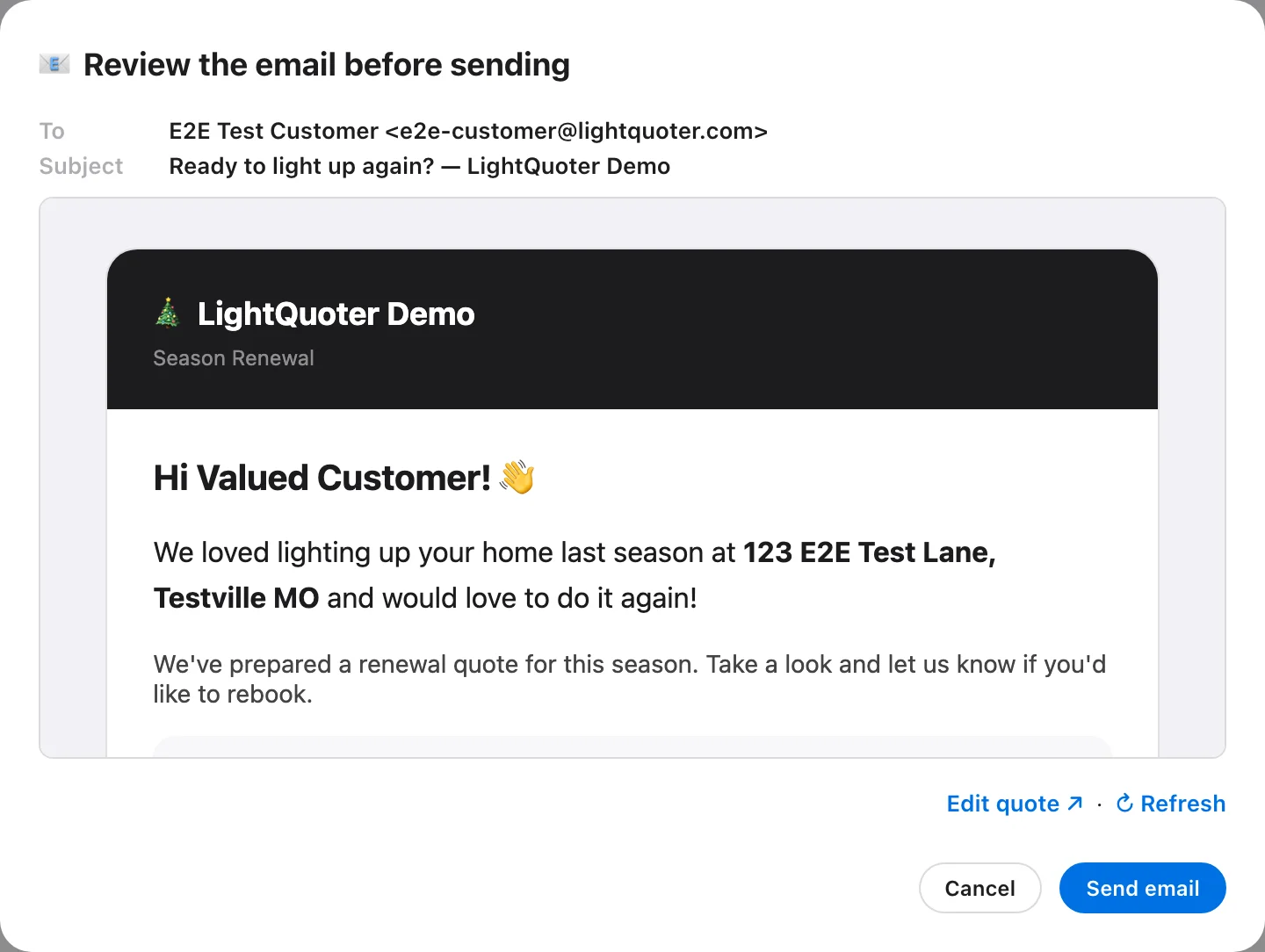
In the preview you can:
- See exactly who it goes to (To) and the Subject.
- Read the email exactly as the customer will get it.
- Click Edit quote ↗ to fix something, then ↻ Refresh to see the change.
- Sending to several customers? Use ‹ › to page through each one before you click Send all.
Cancel sends nothing. The renewal quote stays as an unsent draft, and you can send it later.
If a customer has no email address on file, the preview says so and the email can’t be sent. Add their email on their customer page first.